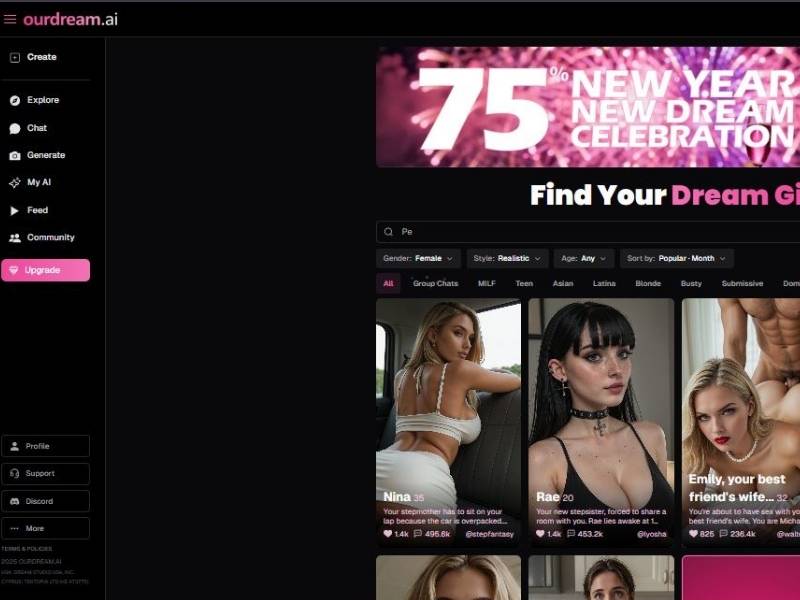
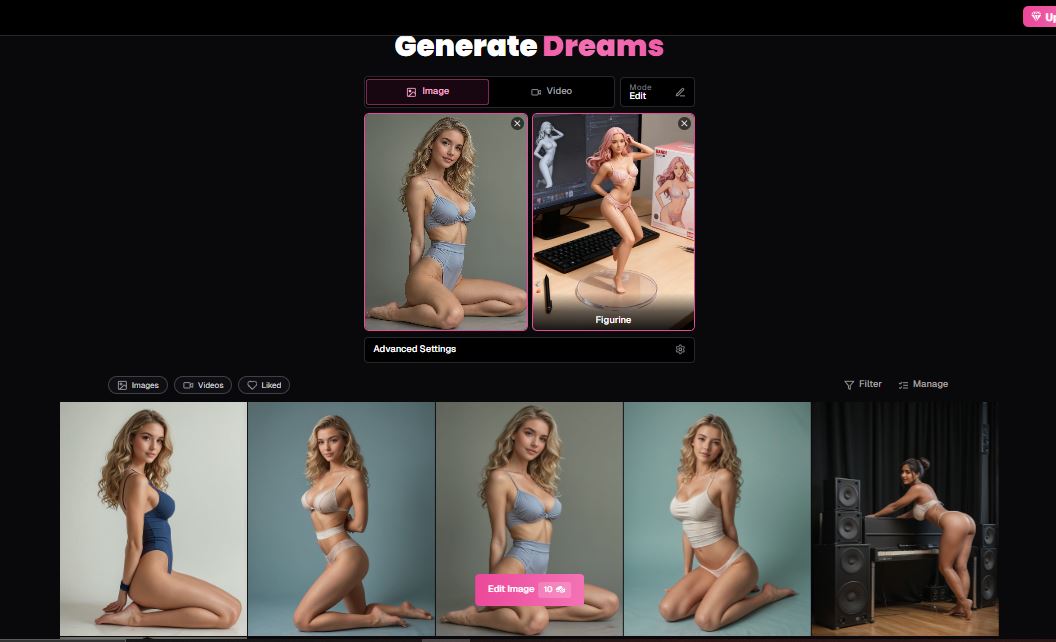
If you make it to the image-generation screen, what’s immediately apparent is that this isn’t some lo-fi art maker. It’s pitched as if it IS a place for you to create rich visual works of your AI companions – including uncensored outputs.
Some third-party depictions explicitly state that the platform will facilitate uncensored image and video features connected to your AI avatar.
In real person speak: you’re not limited to awful avatars or bad fantasy art. The possibility of freedom – adult and/or unfiltered visuals – is there, in a manner that many mainstream creators don’t officially support.
That said, the site itself is relatively (for a NSFW-themed service) tame in even its main image generator page copy – it talks about how you can “get high-quality images,” “choose from multiple art styles,” and “use custom prompts” all without screaming that there’s “NSFW mode here!” right away. The function’s in the house, but the framework isn’t quite as tight.
That contrast tells me two things:
- They know some users want NSFW visuals.
- They don’t plaster explicit language front and center (likely for policy/legal/brand reasons).
A comprehensive guide of how to use Ourdream Image Generator
Step 1: Open the Generator Option
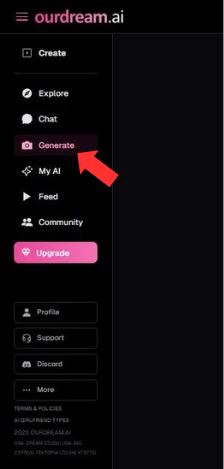
Where this happens
- Left sidebar → click Generate
- This opens the Generate Dreams workspace
What you’re seeing
- A dark UI with pink highlights
- A grid-based layout instead of a long form
- Clear separation between required and optional steps
This is your command center. Everything else happens here.
Step 2: Choose “Image” (Not Video)
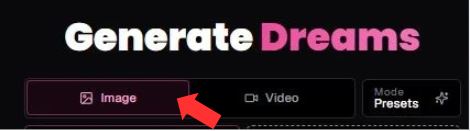
At the very top of the workspace:
- Image tab (active)
- Video tab (inactive)
- Mode Presets option on the right
What this means
- You’re generating still images, not animations
- Video generation is a separate workflow
- For AI girlfriend creation, Image mode is the correct starting point
If Image isn’t selected, nothing else will work.
Step 3: Select a Character
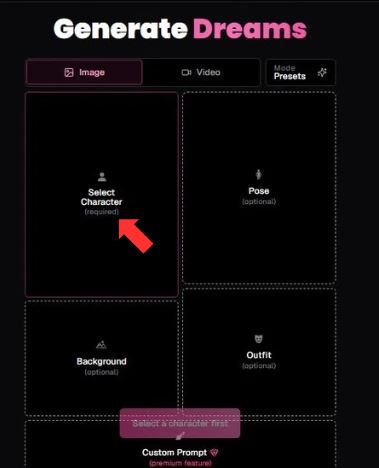
This is the only mandatory block.
UI block
- Large tile labeled “Select Character (required)”
- Empty placeholder until selected
What happens here
- You choose the base AI character
- This defines:
- Face
- Body type
- Overall identity consistency across images
Example shown in the screenshots:
- A character named Scarlett Miller
Once selected, the character image appears in the tile, replacing the placeholder.
No character = no generation. The system enforces this.
Step 4: Select a Pose
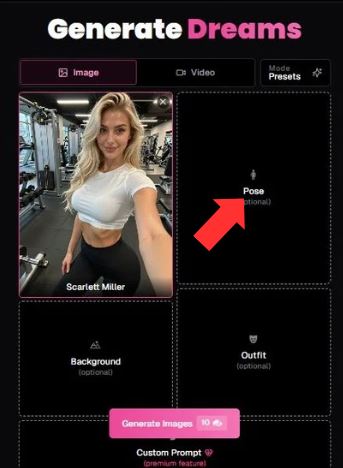
UI block
- Tile labeled “Pose (optional)”
- Shows example poses like kneeling or standing
Why this matters
- Pose controls body language and framing
- It heavily influences mood and composition
- Leaving it blank lets the AI decide
- Choosing one gives you predictability
If you want consistent seductive, casual, or confident visuals, don’t skip this.
Step 5: Select a Background
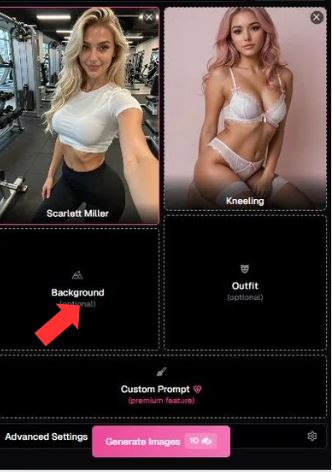
UI block
- Labeled “Background (optional)”
- Examples include:
- Studio lighting setup
- Gym environment
- Plain or styled backdrops
What it controls
- Environment
- Lighting context
- Scene realism
Skipping this often results in neutral or studio-style outputs. Choosing one anchors the image in a specific setting.
Step 6: Select an Outfit
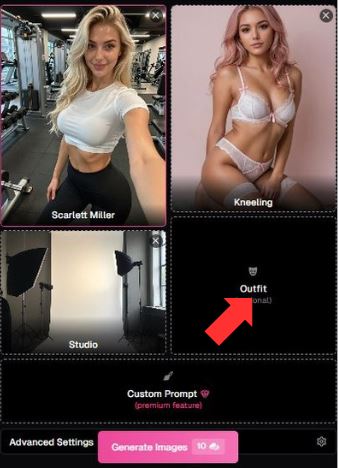
UI block
- Labeled “Outfit (optional)”
- Shown as a clothing icon placeholder
Purpose
- Defines what the character is wearing
- Influences:
- Style
- Tone
- How revealing or casual the image appears
If left empty, the AI fills the gap based on character defaults and prompt context.
Step 7: Add a Custom Prompt (Premium Feature)
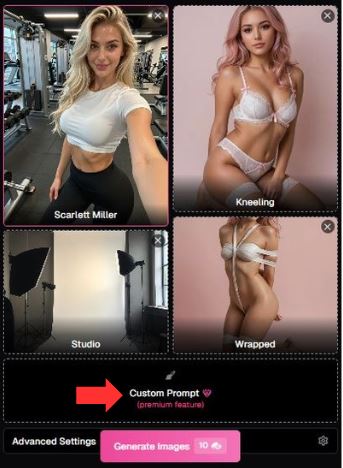
Located at the bottom center:
- Custom Prompt with a heart icon
- Marked Premium Feature
What this does
- Overrides or enhances AI interpretation
- Lets you describe:
- Mood
- Expression
- Style nuances
- Atmosphere
This is where users inject personality. Without it, results rely mostly on presets and selections.
Step 8: Open Advanced Settings
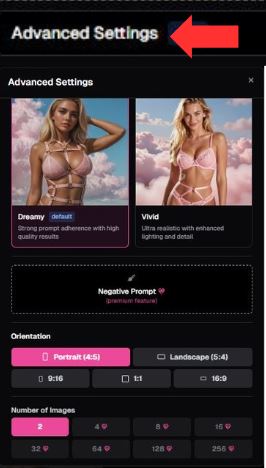
This is where control freaks (in a good way) get excited.
Click Advanced Settings to expand a detailed panel.
Style Presets
- Dreamy (default)
- Strong prompt adherence
- Softer, polished aesthetic
- Vivid
- More realistic lighting
- Sharper details
- Higher contrast
Negative Prompt (Premium)
- Lets you define what you don’t want
- Useful for avoiding:
- Artifacts
- Odd anatomy
- Unwanted styles
Orientation Options
- Portrait (4:5)
- Landscape (5:4)
- 9:16
- 16:9
- 1:1
Portrait is clearly optimized for AI girlfriend images.
Number of Images
- Choose how many outputs per generation
- More images = more credits used
- Ideal for comparing variations
This section is optional—but skipping it means surrendering a lot of fine-tuning power.
Step 9: Generate Images
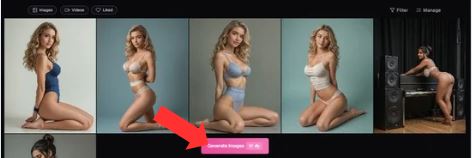
The final action button:
- Generate Images
- Shows the credit cost (e.g., “10”)
Once clicked:
- The system processes all selected inputs
- Images render in the gallery view
- You can review, download, or regenerate
If the button is disabled, it’s usually because:
- No character is selected
- Insufficient credits
How It Works (From Practical Use & Reports)
Here’s a breakdown simplified in human terms:
| Feature | What It Means for You |
| Custom Prompts | You describe what you want to generate – including adult themes if you choose to. (Premium can flex this more.) |
| Advanced Settings | You can tweak art style, pose, and other variables – that’s often where you shape the tone or sensuality of the output. |
| AI Companion Integration | Images aren’t just random art – you can tie them to a specific AI character you’ve created on the platform. |
| Uncensored Outputs | Third-party analysis says uncensored images & videos are possible, and this is a big differentiator compared to safer SFW-only generators. |
Look, that table isn’t there to sugarcoat anything. If your interest in this tool is specifically about NSFW visuals that match your prompts and companion characters, the tech appears to support that – and some users explicitly tout it as a reason they picked this over stricter services.
My Personal Take – What’s Strong and What’s a Bit Messy
You know how you sometimes try an AI image tool and it either neuters everything or barrages you with censored errors?
Ourdream’s approach feels more like handing you a paintbrush in a blank studio and saying: “Go make what you imagine.” That’s intoxicating if you’ve been stuck with safe-only filters elsewhere.
But here’s the honest part – and this isn’t me being a buzzkill:
The freedom you might get is paired with some quirks and imperfections. Some people report that:
- Outputs can be a bit imperfect (faces, anatomy, odd hands – you’ve seen it before if you’ve used any image model).
- Settings and token systems can feel confusing at first.
- Privacy/discretion details aren’t spelled out clearly, which matters when adult content is involved.
So yes, it feels powerful, but there’s a learning curve and you might have to experiment a bit to really nail your vision. That’s normal – it’s not like flipping a switch and bam, perfect visuals every time. There’s artistry involved.
Experience & Emotional Angle
Let’s talk human to human: if you’ve ever been frustrated by overly restrictive generators that refuse even slightly suggestive prompts, you’ll feel a breath of fresh air here.
The vibe is more like exploring your creative edge than being shackled by “safe mode.” That’s exciting! If you want adult visuals that align with your imagination – not a censored minimum – this tool might make you actually want to play around and see what it can do.
At the same time, there’s that niggling feeling of “am I wandering into grey areas?” That’s real. A space with fewer filters means you have the responsibility to think about privacy, consent within your own creations, and how you use the visuals you generate. That’s a responsibility no cool UI fun can take away.
Pricing, Tokens, and Hiccups
The site leans on a free tier and a premium token system. Premium gives you the freedom to really customize prompts and push limits.
But – and this is one of those “gotchas” that makes you go hmm – tokens, credits, and pricing sometimes feel like a secondary chore to the creative process. Some folks mention getting a bit lost trying to figure out what costs what.
Should You Try It? (Real Talk)
If your goal is NSFW image generation, and you’ve been itching for:
- Fewer restrictions than mainstream, safe-only AIs
- Integration between character creation and visuals
- A playground, not a sandbox
Then yes, it might be worth a shot.
Just go in with your eyes open:
- There are imperfections in output quality sometimes.
- Privacy and data handling aren’t spelled out like a rock-solid promise on the homepage.
- You’ll pay more for the freedom features.
If that all sounds like exactly your jam – go explore it. If you’re wincing at any of that, then maybe a different tool with stricter policies or clearer pricing is a better fit.
Either way, at least now you know what this tool really looks like under the hood. And honestly? That’s half the battle before you click “Generate.”