Before we get down to some of what OurDream does though, let me ask you.This time when I say “uncensored video generation,” what do you think? Potential for something raw, no filters, no safety gates, artistic freedom … right?
This is how the platform pitches itself: it enables you to create videos (and images) free of censorship filters, so the AI will not automatically suppress mature or adult material the way most mainstream platforms do.
That’s a big differentiator from tools that reject sketches with any nudes or risqué themes hidden within.
That’s not to say you should go around doing illegal or something bad – platforms still generally ban children or problematic illegal situations-but it does mean that the usual “Sorry, can’t help with that” wall you hit on other tools is way lower here.
Ourdream Video Generator: Detailed user guide
Step 1: Enter the Generator Hub
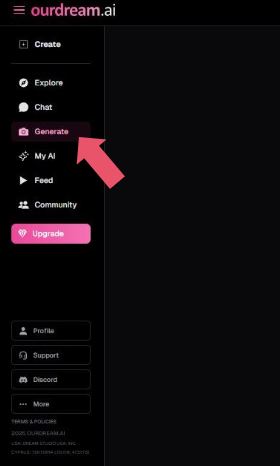
You begin on the left sidebar.
- Click “Generate” in the main navigation.
- This takes you into the Generate Dreams workspace, which is the core creation studio.
- Think of this area as your control room—everything happens here.
At the top, you’ll notice two tabs:
- Image
- Video (this is what you want for an AI girlfriend experience)
Make sure Video is selected. If it isn’t, nothing else will work the way you expect.
Step 2: Switch to Video Mode (Critical)
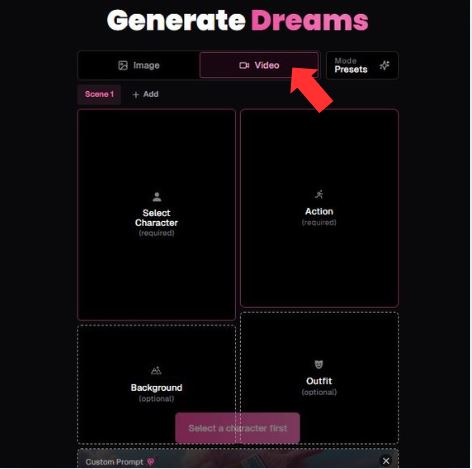
At the very top center:
- Toggle from Image → Video
- You’ll immediately see the layout change into a scene-based structure
The generator now expects:
- A character
- An action (required)
- Optional background
- Optional outfit
This setup already tells you something important:
The AI girlfriend isn’t static. She’s meant to move, react, and exist in a scene.
Step 3: Select Your AI Girlfriend (Character Panel)
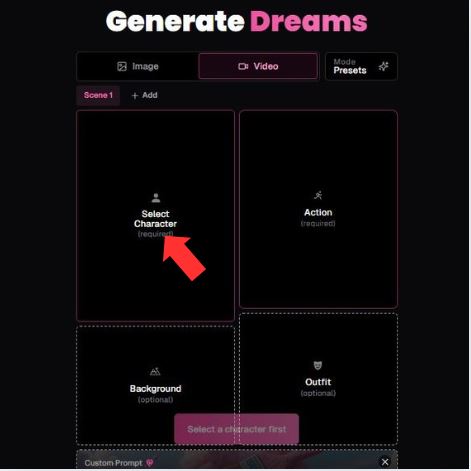
This is the first required step, and the UI makes that very clear.
- Click “Select Character (required)”
- You’ll see character cards (example shown: Nina)
- Each character is a pre-trained AI persona with:
- Facial consistency
- Body proportions
- Style tendencies
Once selected:
- The character card fills the top-left panel
- A small “X” appears if you want to swap her later
Tip:
Choose carefully here. Everything else—outfits, actions, motion—builds on this choice.
Step 4: Choose an Action (Required)
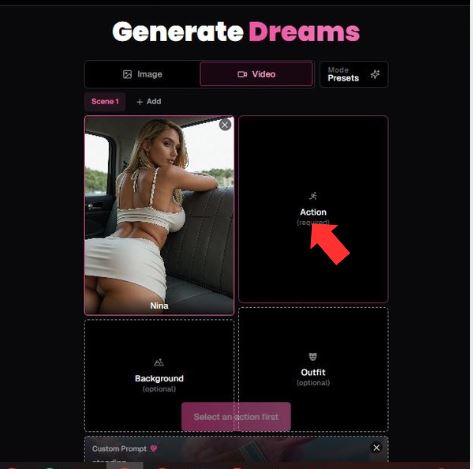
Now move to the Action panel (top-right).
This step is mandatory, and the UI won’t let you skip it.
- Click “Action (required)”
- Actions define what your AI girlfriend is doing
- Examples might include:
- Standing
- Walking
- Posing
- Sitting
- Turning toward camera
This is where the “video” part actually kicks in.
No action = no movement = no video.
If the generator refuses to proceed, this is usually why.
Step 5: Add a Background (Optional but Powerful)
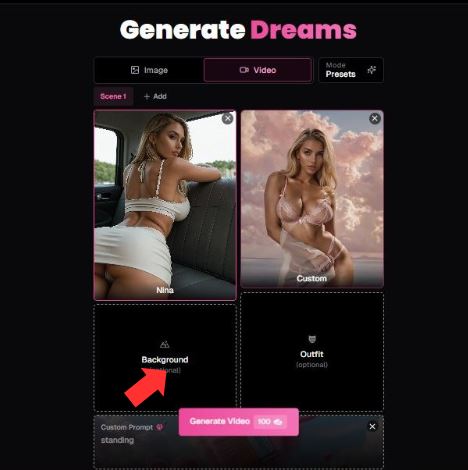
Bottom-left panel: Background (optional)
- Click to choose a setting
- Example shown: Beach Campfire
- Backgrounds influence:
- Lighting
- Mood
- Atmosphere
- Depth of scene
Even though it’s optional, skipping this can make the output feel flat.
A background gives your AI girlfriend a place, not just a pose.
Step 6: Select an Outfit (Optional but Influential)
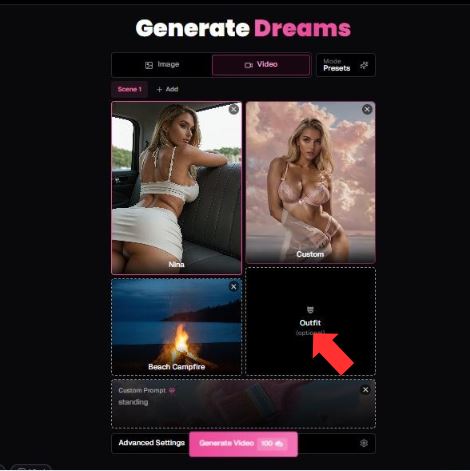
Bottom-right panel: Outfit (optional)
- Lets you control clothing style
- Can range from casual to stylized looks
- Outfits interact with:
- Character body type
- Action movement
- Camera framing
Important note:
Leaving this blank usually defaults to the character’s base look.
If you want personalization, this is where you do it.
Step 7: Write the Custom Prompt (Behavior & Vibe)
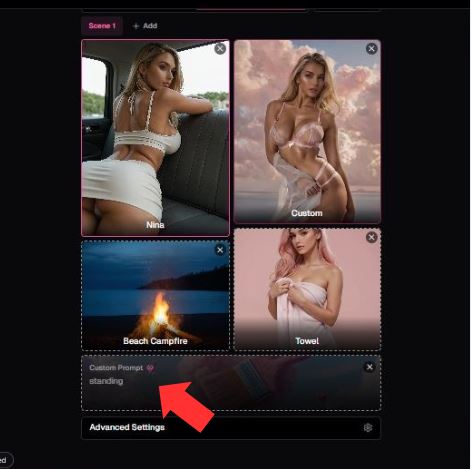
Below the panels is the Custom Prompt field.
This is where personality comes in.
You can describe:
- Attitude (“confident”, “shy”, “playful”)
- Body posture
- Camera awareness
- Subtle behaviors (eye contact, breathing, stance)
Example style (not a template):
standing confidently, relaxed posture, natural movement, soft expression
This text doesn’t replace actions—it enhances them.
Step 8: Advanced Settings, Fine-Tune the Experience
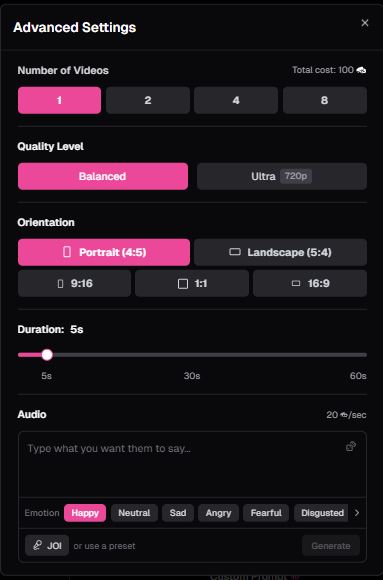
Click Advanced Settings to open the control panel.
Here’s what each option does:
Video Quantity
- Generate 1, 2, 4, or 8 videos
- More videos = more variations
Quality Level
- Balanced – faster, good results
- Ultra (720p) – sharper detail, slower render
Orientation
Choose how your AI girlfriend appears on screen:
- Portrait (4:5)
- 9:16 (phone-style)
- 1:1 (square)
- 16:9 (cinematic)
Portrait is ideal for girlfriend-style content.
Duration
- Slider from 5s → 60s
- Longer videos show more natural motion, but cost more credits
Audio (Optional)
- You can type dialogue
- Select emotional tone:
- Happy
- Neutral
- Sad
- Angry
- Fearful
- Disgusted
This adds voice or expressive sound if enabled.
Final Step: Generate the Video
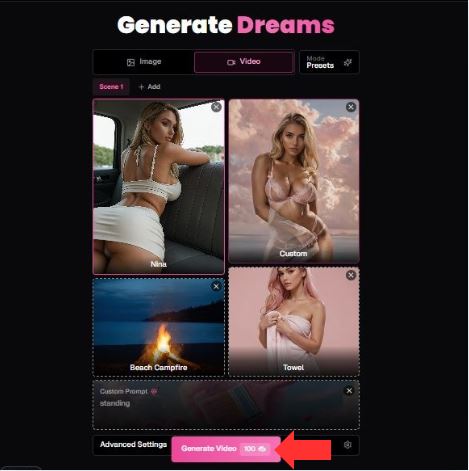
Once everything is set:
- Click “Generate Video”
- Credit cost is shown clearly (example: 100 credits)
- The system renders your AI girlfriend video
You’ll receive:
- A playable video
- Options to regenerate, tweak, or refine
Raw Impressions: How It Feels to Use
You might wonder if uncensored equals clunky or unsafe. It doesn’t-well, not in the usual sense.
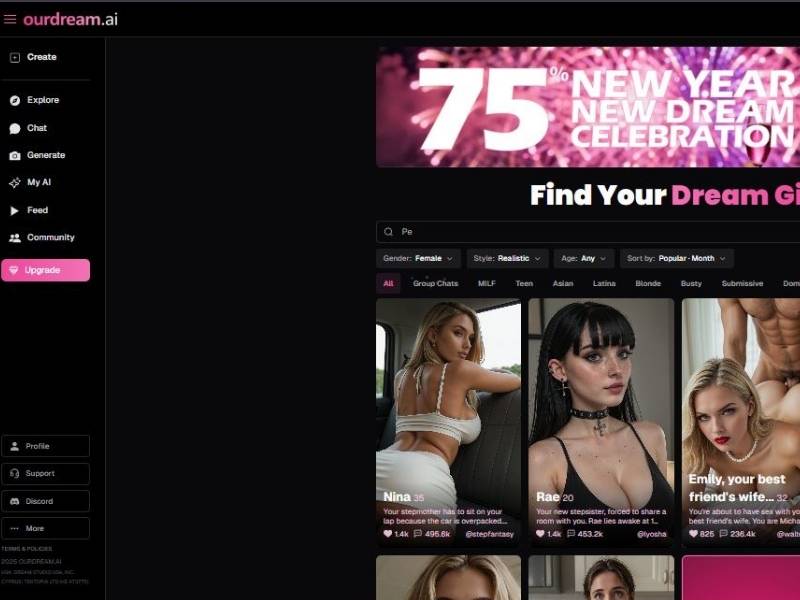
When I first poked around, I noticed the site’s polish: clean UI, maybe a little familiar if you’ve used any AI image/video interface before.
Prompt box up top, generate options, settings… that sort of thing. That said, the documentation on the page itself for video is not super explicit (it mostly shows “image” as the headline), but third-party coverage confirms uncensored image + video generation is a key selling point.
I went in thinking this might be another half-baked feature, but users across threads note the video generation actually works and sometimes produces much better quality video than generic AI tools.
So I asked myself:
Does it feel like a gimmick?
Honestly: nope. It feels like they actually built this with uncensored output in mind-not an afterthought.
Let’s talk a bit about why that matters.
Why Some People Care Deeply About “Uncensored”
Most video AI tools are safe by default. That’s good for general audiences, but terrible if you’re an artist, adult-content creator, or just someone experimenting with more expressive outputs.
An uncensored generator lets you:
- Describe scenes that include mature themes without getting blocked
- Create character-driven animations that mainstream tools reject
- Generate customized video outputs from text prompts
- Feel like you’re in control, not the filter
This is exactly the niche OurDream is going after: creative control with no built-in rejection of mature prompts, as long as they’re legal.
Features Breakdown
Here’s a quick snapshot so you can see the practical stuff without wading through marketing fluff:
| Feature | What It Means | Why It Matters |
| Uncensored Video Generation | AI generates video from your prompts without censoring mature content | Freedom for artists, creators, personal projects |
| Image + Video Support | You’re not stuck with stills only | More dynamic outputs for storytelling |
| Customization Options | You can tweak characters, settings, styles | Deeper control over your creations |
| Freemium + Paid Tiers | Basic usage is free; full power behind a subscription | Try before you commit |
| Advanced AI Models | Uses state-of-the-art generation backends | Results that look realistic or stylized |
Does It Actually Work?
Yes - users are reporting real, usable video creation and the uncensored thing isn’t just hype. In discussions in community people point out that some tools struggle with or outright refuse to produce “adult” material, but if you write the prompt well enough OurDreams always delivers.
There is nothing more frustrating than a powerful generator that only wants to inspire you to make PG-13 fare when you are looking for exciting, inventive and expressive material. That is precisely where this tool excels.
It’s not flawless – sometimes the AI video duration or continuity isn’t Hollywood-grade – but you can still get satisfying, uncensored visual output that doesn’t lead to built-in bans.
Pricing and Access
OurDream offers a freemium model-so you can start generating without paying. You get a taste of the video and image tools, and if you love it (which a lot of folks do) you can upgrade for higher quality, faster generation, and more complex videos.
Comparatively, some niche uncensored video tools charge way more, or don’t have free tiers at all. So this feels accessible and low-risk to try.
What You Should Know Before You Dive In
Let’s get real for a sec:
- This is not innocent cute kitten content only. If you try something borderline or illegal, the platform’s own terms still apply. That’s not just on you-and that’s important. Always respect laws and consent.
- Quality varies. The tech is amazing for current standards, but AI video can still be choppy or rough around the edges depending on your prompt.
- There’s a learning curve. Better prompts = better videos. It’s like learning any creative tool.
Final Take: Would I Try It?
Your short answer: Yes, absolutely – if you desire genuine creative freedom in creating artificial intelligence video that hasn’t been filtered.
It doesn’t come across as an empty promise – users actually report real, powerful outputs that most mainstream tools can’t or won’t. If you’re an artist or a content creator, or even just curious about the tech, it’s worth at least one thorough test run.
Just be smart about what you create – and choose your prompts carefully.