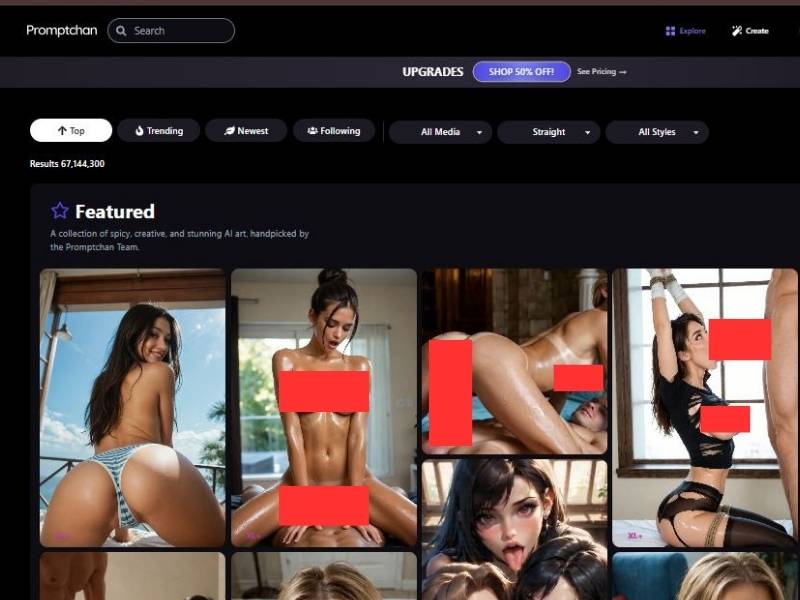
Promptchan is one of those tools t… OK, I only just discovered Promptchan, but as soon as I did, I was like “Well OK, this here knows what it’s doing”. It’s, fundamentally, an NSFW image generation platform that uses the magic of AI to generate dumb art from your text descriptions.
This is not some general-purpose, nicey-nice, office-safe AI tool. It’s designed for people who crave creative independence without being bopped on the head by guardrails all the time.
What makes Promptchan noteworthy isn’t just the adult angle (the web is full of that) but rather how it also meshes prompt-driven image generation, style control, and unexpectedly good output quality without claiming to be anything it’s not. It doesn’t lecture you. It doesn’t moralize. It just… generates.
And, yes, it is aware of its target audience.
How to use Promptchan: Step-by-step guide
Step 1: Enter the Create Mode (Where Everything Begins)
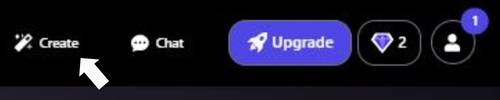
The first thing you’ll notice at the top navigation bar is Create. This is your command center. Clicking it switches you from browsing other users’ creations into builder mode.
Here’s what’s happening on this screen:
- Create tab: launches the AI generation workflow
- Chat tab: used later if you want to interact with generated characters
- Upgrade button: unlocks advanced models, styles, and poses
- Credits indicator: shows how many generations you have left
Think of this step as opening Photoshop before you actually draw anything. No magic yet-just setting the stage.
Step 2: Choose Image Mode (Image vs Video)
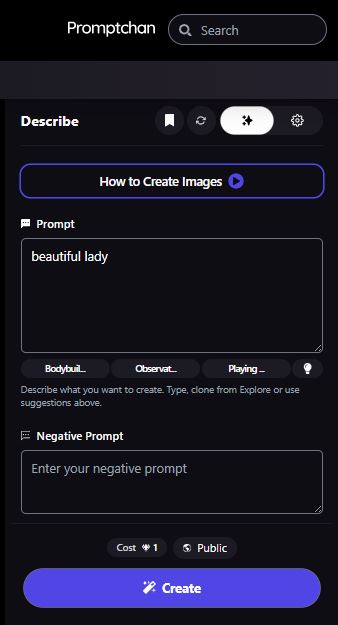
At the top of the generation panel, you’ll see a toggle:
- Image (selected by default)
- Video (locked or premium in most cases)
For creating an AI girlfriend, Image mode is the correct choice. Video generation is heavier, slower, and frankly overkill if you’re just building a character.
Below that is the Describe / Prompt box-empty, waiting, slightly intimidating.
This is where your imagination meets the machine. Don’t overthink it yet. You’ll come back to this once the visual foundations are set.
Step 3: Select the AI Style (How Real or Stylized She Looks)
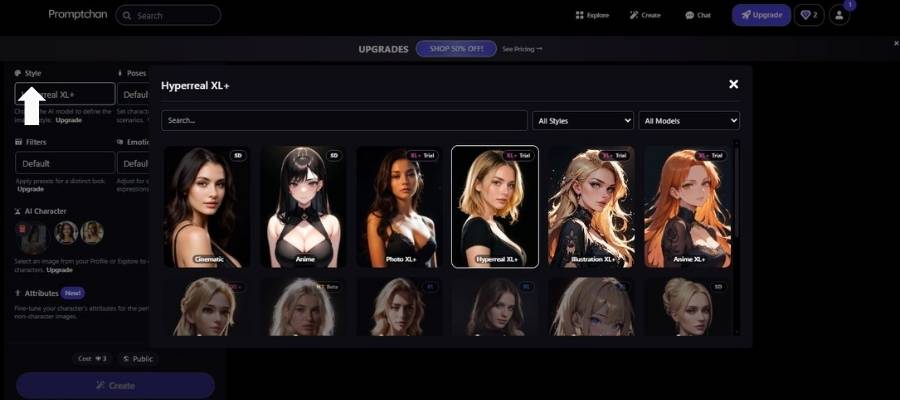
On the left panel, the Style section controls how your AI girlfriend looks-not who she is, but how she exists visually.
Common options shown:
- Hyperreal XL+ – ultra-realistic, photo-like output
- Anime / Illustration – stylized, drawn aesthetics
- Cinematic – dramatic lighting and mood
If you want something that feels like a real person, Hyperreal XL+ is the obvious pick. If you want fantasy or stylized vibes, anime or illustration works better.
This choice massively affects the final output. Same prompt, different style = totally different girlfriend.
Step 4: Choose Pose & Expression (Body Language Matters)
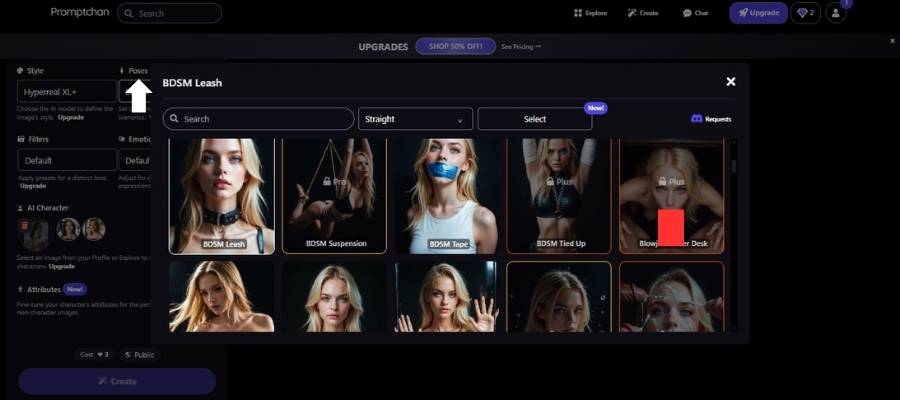
This is one of the most powerful-and underrated-steps.
Pose Selection
You’ll see a grid of poses such as:
- Standing
- Sitting
- Relaxed
- Expressive body stances
These define posture and framing. A standing pose feels confident. A seated pose feels intimate. It’s subtle psychology, but it works.
Facial Expressions
Options include:
- Smiling
- Angry
- Shocked
- Upset
- Neutral
Expression changes emotional tone instantly. Same character, same outfit-different expression, different story.
A smiling face feels approachable. A neutral one feels mysterious. Choose intentionally.
Step 5: Apply Filters & Visual Mood
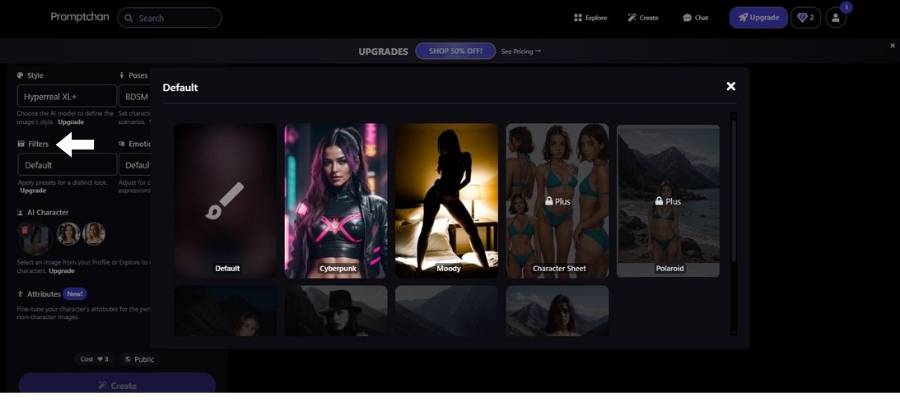
Next up is Filters. This is where mood sneaks in quietly and changes everything.
Visible filter examples:
- Default – neutral, clean
- Moody – darker lighting, dramatic shadows
- Cyberpunk – neon, futuristic edge
- Polaroid – soft, casual, candid look
Filters don’t change anatomy or pose-they affect atmosphere.
If style is “how she looks,” filters are “how the room feels.”
Personal tip: beginners should stick to Default or Moody until they understand how prompts behave.
Step 6: Choosing Emotion (Facial Expression)
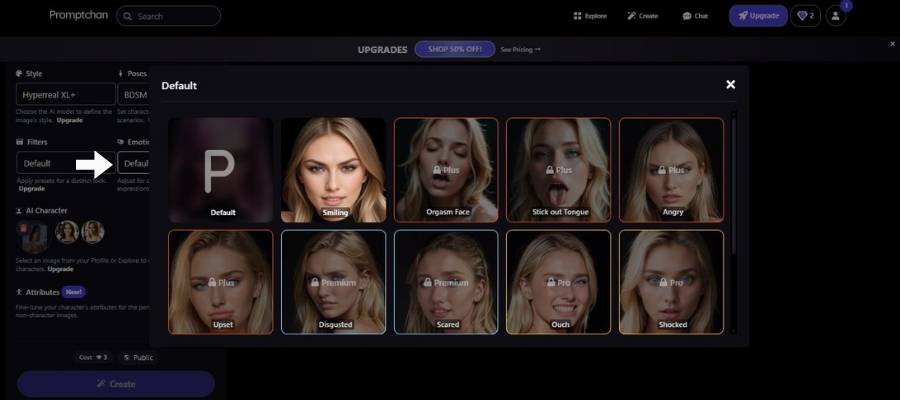
This step controls how your AI girlfriend feels and comes across emotionally. Same character, same pose-change the emotion and you change the entire vibe.
Where to find it
On the left sidebar, click Emotion (shown as Smiling in the image). This opens the emotion selection window.
What you can choose
You’ll see a grid of facial expressions such as:
- Smiling – friendly, warm, girlfriend-like (most natural choice)
- Winking – playful, flirty, teasing
- Upset – sad or disappointed mood
- Disgusted – attitude, judgment, sass
- Scared – fear or tension
- Shocked – surprise, dramatic reaction
- Ouch – pain or awkward moment
Some emotions are locked (Plus / Premium / Pro). You can only select the ones available on your plan.
How to select
- Click an emotion tile.
- Close the window using the X (top-right).
- The selected emotion appears in the left sidebar.
- Continue to generate the image.
Why it matters
Emotion directly affects:
- Facial expression
- Eye shape and mouth position
- Overall personality of the image
If you’re aiming for a believable AI girlfriend, Smiling or Winking works best. Strong emotions (Shocked, Disgusted, Scared) are better for storytelling, not romance.
Step 7: Choosing Attributes (Body & Physical Traits)
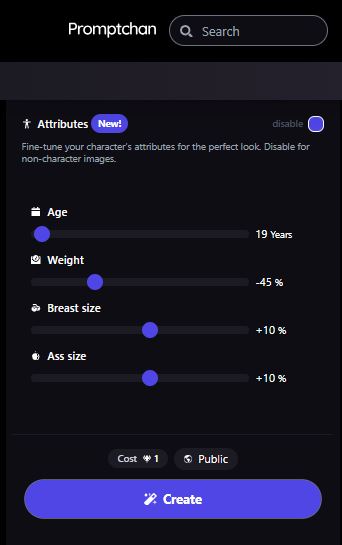
This step lets you fine-tune your AI girlfriend’s physical characteristics. Think of it as dialing in proportions rather than rewriting who she is. Small changes here can noticeably shift how realistic or stylized the final image feels.
Where to find it
In the left panel, open Attributes (marked New!). Make sure the toggle is enabled-if it’s off, none of these sliders will apply.
Attribute controls explained
You’ll see a set of sliders, each with real-time numeric values:
- Age
Adjusts perceived age (shown here as 19 Years). This affects facial maturity and overall look, not just a number. - Weight
Controls body slimness or fullness (e.g., -45% = leaner frame). - Breast Size
Increases or decreases chest proportions (+10% shown). - Ass Size
Adjusts hip/glute proportions (+10% shown).
These sliders are relative adjustments, not absolute measurements. Subtle moves work best-pushing everything too far can make results look artificial.
How to use this step
- Enable Attributes.
- Adjust sliders gradually.
- Watch for balance-changing one trait often affects how others read visually.
- Leave Attributes disabled if you’re generating non-character or experimental images.
Why it matters
Attributes shape consistency. If you want the same AI girlfriend across multiple images, these settings help keep her proportions stable instead of random.
Quick tip
For realistic results, avoid maxing out sliders. Slight adjustments plus a clean prompt almost always look better than extreme values.
Once set, move on and hit Create-your chosen attributes will be baked into the generation.
How does it work?
You type what you want. Literally. A prompt, a description, a fantasy, a concept you’ve had rattling around in your head at 2 a.m.
Promptchan takes that text input and runs it through its AI image engine, producing visuals that match your request as closely as possible.
There’s no complicated onboarding. No “watch this 12-step tutorial” nonsense. You land on the site, sign up, and start generating.
Under the hood, it works like most modern text-to-image AI systems:
- You write a prompt
- You tweak styles, body types, poses, or themes
- You hit generate
- You judge the result (harshly, if you’re like me)
- You refine and try again
It’s iterative. Messy. Human. Sometimes the first result is gold. Sometimes it’s… not. But that back-and-forth is part of the fun.
Core Functionalities
Here’s what Promptchan actually does, stripped of hype:
| Functionality | Description |
| Text-to-image generation | Convert written prompts into AI-generated images |
| NSFW content support | No aggressive content filters killing your ideas |
| Prompt refinement | Adjust and retry until the image hits right |
| Style control | Anime, realistic, fantasy-inspired visuals |
| Account-based usage | Saves generations and manages credits |
It’s focused. Not bloated. That’s refreshing.
Key Features
Promptchan isn’t trying to win awards for being everything to everyone. Instead, it doubles down on a few features and does them fairly well.
| Feature | Why it matters |
| Uncensored generation | You don’t have to fight the AI to express ideas |
| Prompt-based control | What you write actually influences the result |
| Adult-focused training | Outputs align better with NSFW expectations |
| Fast generation times | No endless waiting or fake loading screens |
| Simple UI | No clutter, no learning curve headache |
One thing I appreciated: the tool doesn’t overpromise. The images can be hit-or-miss depending on your prompt quality, but that’s honest. Garbage in, garbage out – and Promptchan doesn’t pretend otherwise.
Pros and Cons
Nothing’s perfect. If it were, we’d all be out of hobbies.
Pros
- Creative freedom without censorship paranoia
- Easy to use, even if you’re not “techy”
- Surprisingly decent image quality with good prompts
- Knows its niche and commits to it
- Iterative workflow feels natural
Cons
- Not suitable for work, schools, or polite company
- Results depend heavily on how well you write prompts
- Limited use cases outside adult or fantasy visuals
- Can feel repetitive if you don’t experiment
- Not a replacement for professional art tools
If you’re expecting photorealistic perfection every time, you’ll be disappointed. If you enjoy experimenting and nudging the AI like a stubborn mule, you’ll probably enjoy yourself.
FAQs
Is Promptchan free?
There’s usually some form of limited access, but serious usage typically requires credits or a paid plan. You’ll notice the limits quickly if you generate often.
Do I need technical skills?
Nope. If you can describe what you want in words, you’re good to go. Better writing = better images, though.
Is the content really uncensored?
Compared to mainstream AI tools, yes. There are still boundaries (nothing illegal), but it’s far more permissive than most.
Can I use the images commercially?
This is where you need to read the terms carefully. Usage rights can vary, and assuming “yes” without checking is a rookie mistake.
Is it beginner-friendly?
Absolutely. The interface doesn’t fight you, which is half the battle with tools like this.
My verdict
Promptchan is what happens when people develop a thing they know their audience well and don’t dilute it. It’s not pretending to be wholesome.
It doesn’t obfuscate through obscure branding. It arrives, it performs – and then it cedes the question of how far you want to push it.
I’m not going to tell you that it’s life-changing or that it will revolutionize your life. It’s not curing disease or solving for climate.
But as a creative tool, particularly for adult or fantasy-based visuals, it delivers the goods. Sometimes fun. Sometimes frustrating. Occasionally impressive.
If you are inquisitive, open minded, and ok with NSFW prompts then Promptchan may be worth checking out.
If you’re in the market for a safe, corporate-friendly AI toy, then this isn’t your lane – and that’s sort of the point.
Would I recommend it?
Yeah, cautiously. Know what you are walking into, bring some creativity and don’t expect too much.
When it succeeds, it succeeds so well. When it does not, you make another tweak and try again. Just like most creative tools.